Stepista
by Mr Jefferson
Intelligent MIDI patterns for every producer.
Generate production-ready patterns for Ableton Live, Logic Pro, and any DAW. 24 genres. 13 parameters. Completely free.
Built for production
Piano Roll Editor
Interactive grid editor. Click to add notes, drag to move, resize to shape.
24 Genre Presets
Electro, Acid, House, Techno, Trap, Lo-Fi, Ambient, DnB, IDM, and 15 more.
9 Musical Modes
Major, Minor, Dorian, Phrygian, Lydian, and more. Every note stays in key.
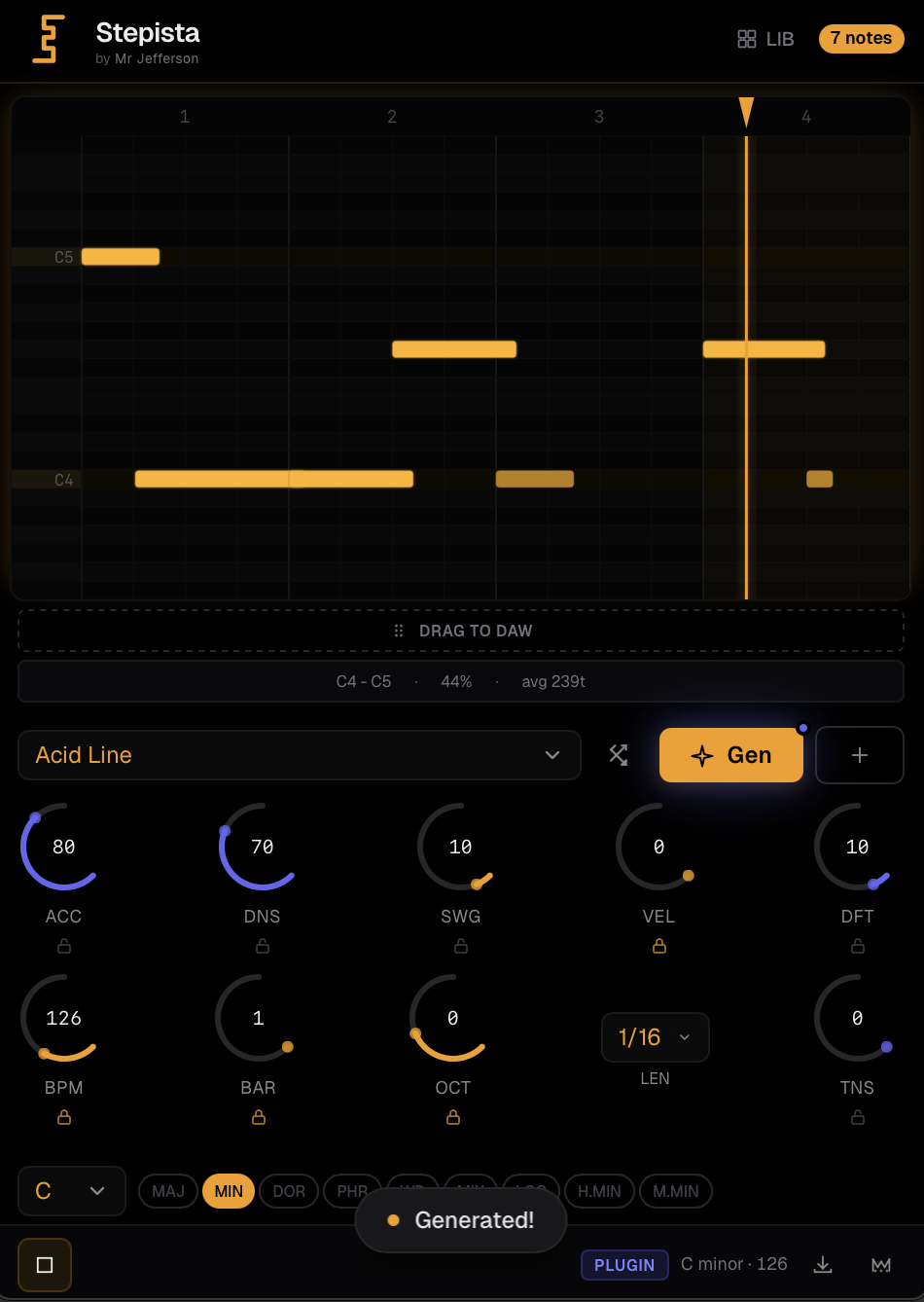
Generative Engine
One click creates musically coherent patterns. Powered by music theory and Euclidean rhythms.
13 Parameters
Accent, density, swing, velocity, tension, octave, BPM — tweak in real-time.
Drag to DAW
Drag the MIDI bar into any track, or Save .mid…
Piano Roll Editor
Interactive grid editor. Click to add notes, drag to move, resize to shape.
24 Genre Presets
Electro, Acid, House, Techno, Trap, Lo-Fi, Ambient, DnB, IDM, and 15 more.
9 Musical Modes
Major, Minor, Dorian, Phrygian, Lydian, and more. Every note stays in key.
Generative Engine
One click creates musically coherent patterns. Powered by music theory and Euclidean rhythms.
13 Parameters
Accent, density, swing, velocity, tension, octave, BPM — tweak in real-time.
Drag to DAW
Drag the MIDI bar into any track, or Save .mid…
See it in action
Watch how Stepista generates MIDI patterns and integrates with your DAW workflow.
Load the plugin
Add Stepista as an instrument on a MIDI track. Tested in Ableton Live 12 and FL Studio.
Hear it
Stepista sends MIDI, not audio. Ableton Live 12: Add a second MIDI track with an instrument on it. Set its MIDI From to the Stepista track, pick Stepista in the chooser below it, and set Monitor to In. FL Studio: Open Stepista's wrapper settings and set a MIDI output port. Load an instrument and set its MIDI input port to the same number.
Or drag the clip
Any DAW: the "Drag to DAW" bar at the bottom of the plugin drags the pattern as a MIDI clip onto a track with an instrument; its "Save .mid…" button writes the file wherever you choose. Where each DAW accepts the drop is listed in the download guide.
Tested in Ableton Live 12 and FL Studio. Expected to work in Logic Pro, GarageBand, Cubase / Nuendo, Bitwig Studio, Studio One and Reaper — not verified yet.
Using a different DAW? .
Three steps to a new pattern
Choose a style
Pick from 24 electronic music genres. Set your key, mode, tempo, and parameters.
Generate
Hit Gen. The engine creates a pattern matching your style and constraints in seconds.
Drag to DAW
Drag the MIDI bar into any track, or Save .mid… Where to drop depends on your DAW — see the download guide.
Built on research, not hype
Stepista's pattern engine draws from peer-reviewed computational creativity research in symbolic music generation.
Constrained Generation
Patterns follow music theory constraints — scale-locked notes, genre-specific rhythmic templates, and tension-aware chord progressions. Every note belongs.
Euclidean Rhythms
Bjorklund's algorithm distributes beats with mathematical precision. The same principle behind West African polyrhythms and electronic music alike.
3-Phase Architecture
Learning, Generation, Transformation. Style templates encode genre knowledge. The engine generates patterns. You shape them with 13 real-time parameters.
Informed by: Pachet et al. (2011), Constrained Markov models for style learning. Computational Co-Creativity (CCC) framework for human-machine musical collaboration.
Download Stepista
Free. No account required. One-click installer.
Ableton Live 12 → VST3 · FL Studio → VST3 · Logic Pro → AU · GarageBand → AU · Cubase / Nuendo → VST3 · Bitwig Studio → VST3 · Studio One → VST3 · Reaper → VST3 · Other DAWs → VST3
Stepista is free and always will be. If it helps your workflow,
consider supporting the project.
Changelog
- FixMIDI to DAW: the bar at the bottom is now a proper drop zone (40 px, clear states, the clip name your DAW will show) with a Save .mid… button and a Show file action for DAWs that don't accept the drop. The file now survives the plugin window closing on drop (Ableton Auto-Hide), is a format-0 MIDI file with tempo and time signature (Bitwig, Logic), and a drag log is written for support. Re-download and re-install to get it
- FixBypassing the plugin in your DAW no longer leaves notes hanging
- FixOctave was applied twice (once in the pattern and again by the plugin): with OCT +1 the DAW played an octave above what the piano roll showed, and the dragged clip disagreed with what you heard. Reopening a project saved with an older version fixes itself
- FixThe plugin’s automatable Octave parameter no longer does anything: the octave now lives only in the notes, which is what fixes the double shift. Use the OCT knob in the plugin instead; automation drawn on that parameter in an older project is ignored
- FixThe octave knob is exact again: 12 semitones per step, and going back to the same value puts the notes where they were. It used to guess the current octave from the notes, so it drifted or did nothing
- FixClip names keep the sharp: patterns in F# minor are no longer called "F minor", and C# no longer overwrites C
- NewEvery knob has a name and help: hover a label to see its full name, press the i (or ?) for what it does, its range and whether it changes the pattern live or on the next Gen. Knobs are keyboard-accessible and double-click resets them
- NewRandom is labelled, shows which knobs it will change, and Gen/Random can be undone for 5 seconds. Pins ("Keep on Random") also survive a style change. Length (BAR) now updates the loop live, in the piano roll and in your DAW: a pattern whose last bars are empty no longer loops short
- FixLibrary: real preset names, always-visible Load/Delete with confirmation, no more losing edits by accident; saving and errors are shown in place; text is larger and more readable everywhere
- FixWindows: the plugin no longer tries to reach the network from inside your DAW. Install guides now explain how to hear the MIDI in each DAW and where to drop the clip
- FixDensity keeps the style's pattern: 50 plays the preset's rhythm as written, lower values thin it from the weakest steps up (sixteenths go first, beats go last) and values above 80 add fills. Presets no longer collapse onto the beats at their defaults, so they play more notes than in 1.0.3 at most density settings; turn density down to taste
- FixMulti-bar patterns keep their variation: bars 2 and up no longer repeat bar 1, so multi-bar presets, per-bar rests and the per-bar chord colour are finally heard
- FixSwing now works on eighth-note presets (dub, lo-fi, afrobeat, synthwave and more; house and jazz waltz once density brings in the offbeat eighths), and turning the swing knob back to 0 restores the straight pattern
- FixThe velocity knob uses a single scale: at 100 each style plays its full accent profile instead of flattening it. Presets play about 20% softer at their default velocity than in 1.0.2; raise the velocity knob to taste
- FixBorrowed chords at high tension are now the real flat chords (bVII, bVI, bIII) instead of chords built on the scale's own 3rd, 6th and 7th degrees
- FixPatterns saved with older versions are cleaned up when loaded: no duplicate notes, and library patterns no longer run past the loop end
- FixPad and chord presets no longer emit the same note twice on the same tick (duplicate note-ons sent to the DAW)
- FixPatterns no longer overrun the loop: any note that ran past the end of the loop is now trimmed to the loop length (most noticeable on pads and chords), so the pattern plays the right number of bars instead of one extra
- FixWindows: fixed blank plugin screen in FL Studio and other DAWs even with WebView2 already installed — the Edge WebView2 engine is now loaded directly instead of falling back to the legacy renderer. Re-download and re-install to get the fix
- FixWindows: fixed blank screen when the Edge WebView2 runtime is missing — now shows install guidance instead
- FixWindows: reliable MIDI drag-to-DAW, and no more corrupt files when running multiple instances
- FixFixed crashes when running multiple plugin instances at once
- FixRemoved the UI scrollbar — the plugin now fits its window cleanly
- NewPlugin version is now shown in the footer
- NewMIDI drag-to-DAW — drag patterns directly into your DAW timeline
- NewWindows VST3 support
- NewSeparate macOS and Windows downloads with installation guides
- FixImproved plugin state restoration when switching tracks in Ableton
- NewInitial release — algorithmic MIDI pattern generator
- New10 musical styles with real-time parameter control
- NewPiano roll visualization with playhead sync
- NewVST3 + AU plugin formats for macOS
- NewPattern library for saving and loading patterns
Frequently asked questions
Stepista is an instrument that sends MIDI, not audio. Nothing sounds until that MIDI reaches a synth or sampler:
- Ableton Live 12 — Add a second MIDI track with an instrument on it. Set its MIDI From to the Stepista track, pick Stepista in the chooser below it, and set Monitor to In.
- FL Studio — Open Stepista's wrapper settings and set a MIDI output port. Load an instrument and set its MIDI input port to the same number.
- Logic Pro (expected) — An AU instrument can't send MIDI to another track in Logic. Drag the clip from the Drag to DAW bar onto a software instrument track, or use Save .mid… and import the file.
- GarageBand (expected) — GarageBand has no MIDI routing between tracks. Drag the clip from the Drag to DAW bar onto a software instrument track, or use Save .mid… and drag the file in from Finder.
Any DAW: the Drag to DAW bar at the bottom of the plugin drags the pattern as a MIDI clip onto a track with an instrument; its Save .mid… button writes the file wherever you choose.